# 🎮 Retro Game Sets Xtra (RGSX)
**[Discord Support](https://discord.gg/Vph9jwg3VV)** • **[Installation](#-installation)** • **[French Documentation](https://github.com/RetroGameSets/RGSX/blob/main/README_FR.md)** • **[Troubleshoot / Common Errors](https://github.com/RetroGameSets/RGSX#%EF%B8%8F-troubleshooting)** •
A free, user-friendly ROM downloader for Batocera, Knulli, and RetroBat with multi-source support.


---
## 🚀 Installation
### Quick Install (Batocera / Knulli)
**SSH or Terminal access required:**
```bash
curl -L bit.ly/rgsx-install | sh
```
After installation:
1. Update game lists: `Menu > Game Settings > Update game list`
2. Find RGSX under **PORTS** or **Homebrew and ports**
### Manual Install (All Systems)
1. **Download**: [RGSX_full_latest.zip](https://github.com/RetroGameSets/RGSX/releases/latest/download/RGSX_full_latest.zip)
2. **Extract**:
- **Batocera/Knulli**: Extract `ports` folder to `/roms/`
- **RetroBat**: Extract both `ports` and `windows` folders to `/roms/`
3. **Refresh**: `Menu > Game Settings > Update game list`
### Manual Update (if automatic update failed)
Download latest release : [RGSX_update_latest.zip](https://github.com/RetroGameSets/RGSX/releases/latest/download/RGSX_full_latest.zip)
**Installed paths:**
- `/roms/ports/RGSX` (all systems)
- `/roms/windows/RGSX` (RetroBat only)
---
## 🎮 Usage
### First Launch
- Auto-downloads system images and game lists
- Auto-configures controls if your controller is recognized
- **Controls broken?** Delete `/saves/ports/rgsx/controls.json` and restart
**Keyboard Mode**: When no controller is detected, controls display as `[Key]` instead of icons.
### Pause Menu Structure
**Controls**
- View Controls Help
- Remap Controls
**Display**
- Layout (3×3, 3×4, 4×3, 4×4)
- Font Size (general UI)
- Footer Font Size (controls/version text)
- Font Family (pixel fonts)
- Hide Unknown Extension Warning
**Games**
- Download History
- Source Mode (RGSX / Custom)
- Update Game Cache
- Show Unsupported Platforms
- Hide Premium Systems
- Filter Platforms
**Settings**
- Background Music Toggle
- Symlink Options (Batocera)
- Web Service (Batocera)
- API Keys Management
- Language Selection
---
## ✨ Features
- 🎯 **Smart System Detection** – Auto-discovers supported systems from `es_systems.cfg`
- 📦 **Intelligent Archive Handling** – Auto-extracts archives when systems don't support ZIP files
- 🔑 **Premium Unlocking** – 1Fichier API + AllDebrid/Real-Debrid fallback for unlimited downloads
- 🎨 **Fully Customizable** – Layout (3×3 to 4×4), fonts, font sizes (UI + footer), languages (EN/FR/DE/ES/IT/PT)
- 🎮 **Controller-First Design** – Auto-mapping for popular controllers + custom remapping support
- 🔍 **Advanced Filtering** – Search by name, hide/show unsupported systems, filter platforms
- 📊 **Download Management** – Queue system, history tracking, progress notifications
- 🌐 **Custom Sources** – Use your own game repository URLs
- ♿ **Accessibility** – Separate font scaling for UI and footer, keyboard-only mode support
> ### 🔑 API Keys Setup
> For unlimited 1Fichier downloads, add your API key(s) to `/saves/ports/rgsx/`:
> - `1FichierAPI.txt` – 1Fichier API key (recommended)
> - `AllDebridAPI.txt` – AllDebrid fallback (optional)
> - `RealDebridAPI.txt` – Real-Debrid fallback (optional)
>
> **Each file must contain ONLY the key, no extra text.**
### Downloading Games
1. Browse platforms → Select game
2. **Direct Download**: Press `Confirm`
3. **Queue Download**: Press `X` (West button)
4. Track progress in **History** menu or via popup notifications
### Custom Game Sources
Switch to custom sources via **Pause Menu > Games > Source Mode**.
Configure in `/saves/ports/rgsx/rgsx_settings.json`:
```json
{
"sources": {
"mode": "custom",
"custom_url": "https://example.com/my-sources.zip"
}
}
```
**Note**: If custom mode activated but Invalid/empty URL = using /saves/ports/rgsx/games.zip . You need to update games cache on RGSX menu after fixing URL.
---
## 🌐 Web Interface (Batocera/Knulli Only)
RGSX includes a web interface that launched automatically when using RGSX for remote browsing and downloading games from any device on your network.
### Accessing the Web Interface
1. **Find your Batocera IP address**:
- Check Batocera menu: `Network Settings`
- Or from terminal: `ip addr show`
2. **Open in browser**: `http://[BATOCERA_IP]:5000` or `http://BATOCERA:5000`
- Example: `http://192.168.1.100:5000`
3. **Available from any device**: Phone, tablet, PC on the same network
### Web Interface Features
- 📱 **Mobile-Friendly** – Responsive design works on all screen sizes
- 🔍 **Browse All Systems** – View all platforms and games
- ⬇️ **Remote Downloads** – Queue downloads directly to your Batocera
- 📊 **Real-Time Status** – See active downloads and history
- 🎮 **Same Game Lists** – Uses identical sources as the main app
### Enable/Disable Web Service at Boot, without the need to launch RGSX
**From RGSX Menu**
1. Open **Pause Menu** (Start/ALTGr)
2. Navigate to **Settings > Web Service**
3. Toggle **Enable at Boot**
4. Restart your device
**Port Configuration**: The web service runs on port `5000` by default. Ensure this port is not blocked by firewall rules.
---
## 📁 File Structure
```
/roms/ports/RGSX/
├── __main__.py # Entry point
├── controls.py # Input handling
├── display.py # Rendering engine
├── network.py # Download manager
├── rgsx_settings.py # Settings manager
├── assets/controls/ # Controller profiles
├── languages/ # Translations (EN/FR/DE/ES/IT/PT)
└── logs/RGSX.log # Runtime logs
/roms/windows/RGSX/
└── RGSX Retrobat.bat # RetroBat launcher
/saves/ports/rgsx/
├── rgsx_settings.json # User preferences
├── controls.json # Control mapping
├── history.json # Download history
├── rom_extensions.json # Supported extensions cache
├── systems_list.json # Detected systems
├── games/ # Game databases (per platform)
├── images/ # Platform images
├── 1FichierAPI.txt # 1Fichier API key
├── AllDebridAPI.txt # AllDebrid API key
└── RealDebridAPI.txt # Real-Debrid API key
```
---
## 🛠️ Troubleshooting
| Issue | Solution |
|-------|----------|
| Controls not working | Delete `/saves/ports/rgsx/controls.json` + restart app, you can try delete /roms/ports/RGSX/assets/controls/xx.json too |
| No games ? | Pause Menu > Games > Update Game Cache |
| Missing systems on the list? | RGSX read es_systems.cfg to show only supported systems, if you want all systems : Pause Menu > Games > Show unsupported systems |
| App crashes | Check `/roms/ports/RGSX/logs/RGSX.log` or `/roms/windows/logs/Retrobat_RGSX_log.txt` |
| Layout change not applied | Restart RGSX after changing layout |
| Downloading BIOS file is ok but you can't download any games? | Activate custom DNS on Pause Menu> Settings and reboot , server can be blocked by your ISP. check any threat/website protection on your router too, especially on ASUS one|
**Need help?** Share logs from `/roms/ports/RGSX/logs/` on [Discord](https://discord.gg/Vph9jwg3VV).
---
## 🤝 Contributing
- **Bug Reports**: Open GitHub issue with logs or post on Discord
- **Feature Requests**: Discuss on Discord first, then open issue
- **Code Contributions**:
```bash
git checkout -b feature/your-feature
# Test on Batocera/RetroBat
# Submit Pull Request
```
---
## 📝 License
Free and open-source software. Use, modify, and distribute freely.
## Thanks to all contributors, and followers of this app
**If you want to support my project you can buy me a beer : https://bit.ly/donate-to-rgsx**
[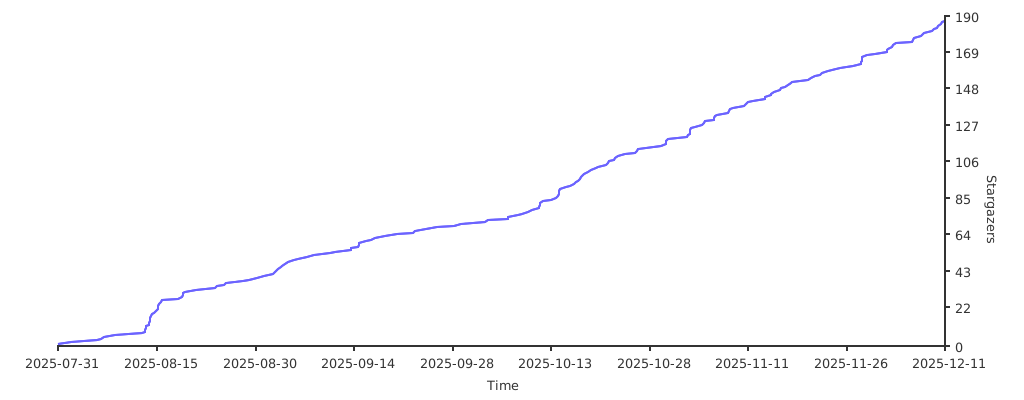](https://starchart.cc/RetroGameSets/RGSX)
**Developed with ❤️ for the retro gaming community.**